Windows 10 home vs windows 10 pro ; which one is better
If you have landed on this article, you are most probably gearing up to
upgrade your PC to the latest iteration of Windows. But just like many
Microsoft Windows users, you also can't decide whether to embrace
Windows 10 Home or go for the full-on Windows 10 Pro. Let's put the
bigger picture out of the way; while Home edition is designed for
everyday normal user, the Pro edition is primed for professionals who
want better control and use their
Windows devices more efficiently. Though the latter is designed to cater to the demand of businesses and power users, there are quite a few goodies that can seamlessly fit into everyone's needs. And this is exactly what has led me to write Windows 10 Home vs Pro face-off article. So, if you were debating which Windows version to get here is our full comparison of Windows 10 Home and Windows 10 Pro.
Windows devices more efficiently. Though the latter is designed to cater to the demand of businesses and power users, there are quite a few goodies that can seamlessly fit into everyone's needs. And this is exactly what has led me to write Windows 10 Home vs Pro face-off article. So, if you were debating which Windows version to get here is our full comparison of Windows 10 Home and Windows 10 Pro.
Windows 10 Home vs Pro
Before we can dive into Windows 10 Home vs Pro debate, let me tell you
upfront that Windows 10 Home is more than good enough to suit your basic
demands. Most of us won't even notice the difference between the
Windows 10 Home and Pro editions. So, if you have already purchased a
Windows 10 Home device, you don't have to lament the purchase. That
being said, Windows 10 Pro is fully geared up for power users and
businesses.
In the sections below, we will show you all the Windows 10 Pro features
that Windows 10 Home edition lacks so that you can decide for yourself
which version of Windows 10 makes more sense for you. We will first
discuss those features which make sense for individual users and then
move on to enterprise specific features. So let's just dive into it,
shall we?
Windows 10 Home vs Pro - User Oriented Features
1. BitLocker
In this fast-paced digital world, Windows 10 security has
become a matter of paramount importance. And if you are not taking
extra measures to safeguard your data against the ever-looming threats
like ransomware, malware, and spyware, your data is running the risk of
being hacked. When it comes to protecting your files, Windows 10 Pro has
definite advantage over the Windows 10 Home edition.
That's because of the inclusion of BitLocker which is the one Pro
feature that Windows 10 home users will surely miss. You can use
BitLocker to encrypt your PC's hard drive as well as any removable drivesto
offer an extra layer of shield to your data. With this encryption
enabled, only the authorized people will have access to the files. While
several third-party encryption software are available for Windows 10 Home, having an inbuilt encryption feature in Pro is surely appreciated.
2. WDAG
WDAG stands for "Windows Defender Application Guard" that lets you shield your PC against malware and other serious threats while browsing the web.
It basically allows you to isolate Microsoft Edge at the hardware level
with the help of Hyper-V technology to defend both your computer and
data against malware and other attacks.
From the security point of view, I find "WDAG" a great asset. Knowing
how rampant zero-day attacks have become, it's worth using and ensuring
that your web browsing remains protected.
3. Remote Desktop Connection
Imagine a situation where you had to urgently carry out an essential
task in your office but you forgot to do it. And when you reached home,
you suddenly remembered that important thing. Wouldn't it be great if
you could access your office desktop right from your Homeand
do the needful right from your couch? Well, this is what Remote Desktop
Connection does as it allows you to access your Windows 10 Pro PC from
anywhere once you set it up.
That being said, I am not going to miss this feature much on my Windows 10 Home machine as there are several third-party Windows 10 remote desktop appsthat
are much more powerful than RDP on Windows 10 pro. Do check these apps
out if you want to use remote desktop access on your Windows 10 device.
4. Trusted Boot
Trusted Boot is yet another security feature which I believe could be enormously helpful to many. It's developed to defend your computer against rootkits.
It works in sync with Secure Boot, making sure each and every component
of the startup process is thoroughly checked before being loaded up.
This way, it makes sure your system remains malware-free.
Trusted Boot does seem to be more favorable towards pros and businesses.
However, you can't take your eyes away from what it brings to the
table. Again, if un-compromised safety of your system is what you are
after, you'd like to have it at your disposal.
5. Client Hyper-V
Frankly speaking, "Client Hyper-V" is only for tech nerds who never seem
to get enough of experimentation or the full-time professionals who
often have to test out different virtual machines. It's
a virtualization technology tool that enables you to run virtual
machines on CPUs. Keep in mind, though it comes with Windows 10 Pro,
Enterprise, and Education editions, you will still need to download and
install this technology separately.
Just in case, you don't want to go for the Windows Pro edition but wish to use virtualization technology, try out Virtualbox (free) as it's versatile and comes with many functionalities. Even better, it works with multiple operating systems.
6. Windows Sandbox
There is a lot to like in Windows Sandbox. What makes it so user-friendly is the ability to let you create a fresh Windows 10 session for trying out something new.
For instance, it will come in really handy when you want to test some
applications or run suspicious files in a sandbox environment.
What's more, as soon as you turn off Windows Sandbox, everything gets
wiped out automatically which is yet another plus both from security and
privacy perspectives. If you often find yourself in a situation where
you need to test out apps and suspicious stuff, it would be a fine asset
for your usage. While it's an awesome feature, I don't think normal
Windows users will need this feature ever.
7. RAM Difference
Another major difference between Windows 10 Home and Pro edition is RAM. While the former has the support for 128 GB of RAM, the latter can accommodate up to 2 TB of RAM. Now that is something Windows 10 Home users will surely miss if they want to create a high-end workhorse PC.
In most real-world scenarios, 128 GB of RAM would be more than good
enough. However, users who do professional level work such as running
tons of virtual machines at the same time, doing heavy 3D rendering, and
more, might need extra RAM. If that's what your workflow demands, then
you should definitely consider buying the Windows 10 Pro edition.
Windows 10 Home vs Pro - Enterprise Oriented Features
Apart from the above mentioned Windows 10 Pro edition features that can
be helpful to even normal Windows users, Windows 10 Pro also brings
business oriented features which are targeted at businesses and
enterprises. So, if you are running a company and want to know which
Windows 10 edition is good for you, you should check out the features
below to see if you will be needing them or not.
1. Enterprise Mode Internet Explorer
For businesses that often have to use old web apps, "Enterprise Mode"
can be a savior. What makes it such a user-friendly feature is the
ability to let users run old web apps in the newest version of Internet Explorer.
Enterprise Mode ensures you are able to use the older versions of web apps without having to compromise with security, which
is a big plus. As the new version of IE arrives, the outdated web apps
or older ones tend to lose compatibility. As many businesses still
require those apps, Internet Explorer offers an efficient way to use
them without any inconvenience.
2. Group Policy Management
From an admin perspective, "Group Policy" is immensely helpful. Using it, you can restrict access to any Windows 10 features and even customize the settings within the operating system.
If you want to have complete control over which features should or
shouldn't be allowed on a PC in your company, it can ideally suffice
your demand. It's quite easy to set up and manage.
3. Domain Join
"Domain Join" allows businesses to establish a secure connection to a work domain.
It was first introduced with Windows 7 and since then it has continued
to be a highly appreciable feature for enterprise users.
By taking advantage of the Windows domains, network administrators can manage several PCs and easily control them from one place. With the help of the Internet or VPN,
they can communicate with the connected computers. As a result,
businesses can effortlessly manage the computers they offer to their
employees.
4. Assigned Access
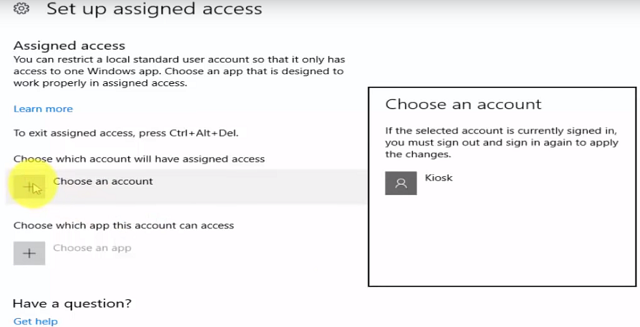
When handing over the computer to a temporary worker, businesses may need to completely lock down Windows and offer access to just one app.
This is where Assigned Access which ensures the entire operating system
is locked except the one assigned app. This is a big safety feature of
business and if you need this, Windows 10 Pro is the better choice for
you.
5. Other Features
Apart from the above-mentioned, big name features, there are other
Windows 10 Pro features which you should check out before you decide
which Windows edition you want to buy.
Take a Test
As the name itself makes crystal clear, "Take a Test" is designed
specifically for the educational market. It enables users to sign in to
take the exam.
Shared PC Configuration
"Shared PC Configuration" is yet another feature that has found its way in the enterprise edition. It enables businesses to set up more than one user on a PC. It not only offers more flexibility but also allows multiple persons to use a computer without any hassle.
Dynamic Provisioning
With Dynamic Provisioning, it's incredibly straightforward to make any
PC ready to be used. For a change, you no longer need to go through the
long drill of enabling/disabling features. Just create a ready-made profile on a USB drive and then insert it into the PC. After that, the computer will auto-configure everything efficiently.
Windows 10 Home vs Pro - The Price Difference
Before wrapping up the story, it would be apt to check out the price
difference as well. Currently, while the Windows 10 Home edition comes
at almost $134 (Rs. 9,299), the Pro variant retails at almost $213 (Rs. 14,799).
So, if you are willing to go for the professional version, you will
have to cough up some extra bucks. That said, if you want to buy Windows 10 for a bit cheaper or even free, you can check out our article, on how to do that by clicking on the link.
Windows 10 vs Windows 10 Pro Which One Will you
So after reading this article, have you decided to stick with the
Windows 10 Home or decided to go for the Pro variant? I would indeed be
very pleased to know your pick and the prime reasons for it. Of course,
the basic version of Windows 10 has got almost all the goodies to live
up to the task for most folks. But it wouldn't be wise to completely
overlook the Pro variant, without taking a close look at what it has to
offer. So do let us know your choice in the comments section below.


Comments
Post a Comment